What Are Deals?
Written By Wilbert Averil
Deals represent transactions with referrals. Deals are essential to track potential revenue brought by your partners, so you can identify the ROI of your partner-led growth strategy.
Creating a Deal
How to create a deal:
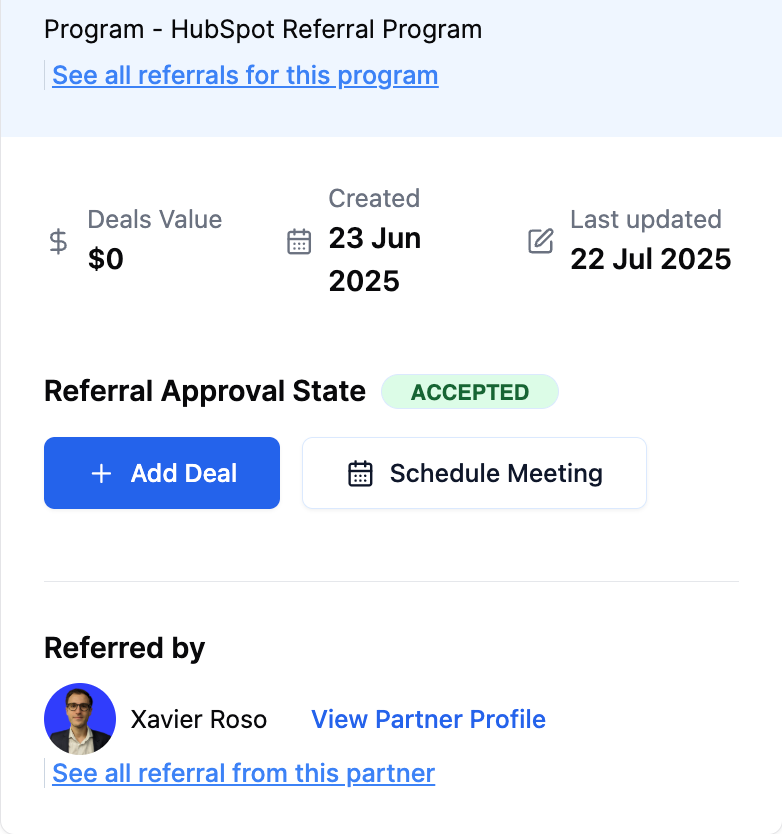
On the left sidebar, click Inbound Referrals
Find the referral you want to make a deal out of and click on it
Click Add Prospective Deal
You will then find a modal on the right side of your screen with the following inputs:
Deal overview: for inputting basic deal information such as total revenue earned, close date, etc.
Contract information: for uploading your contract or signed agreement document
Partner commission: where the commission to be paid to the partner is calculated
Payment details: where you can set a one-time commission or recurring commission.
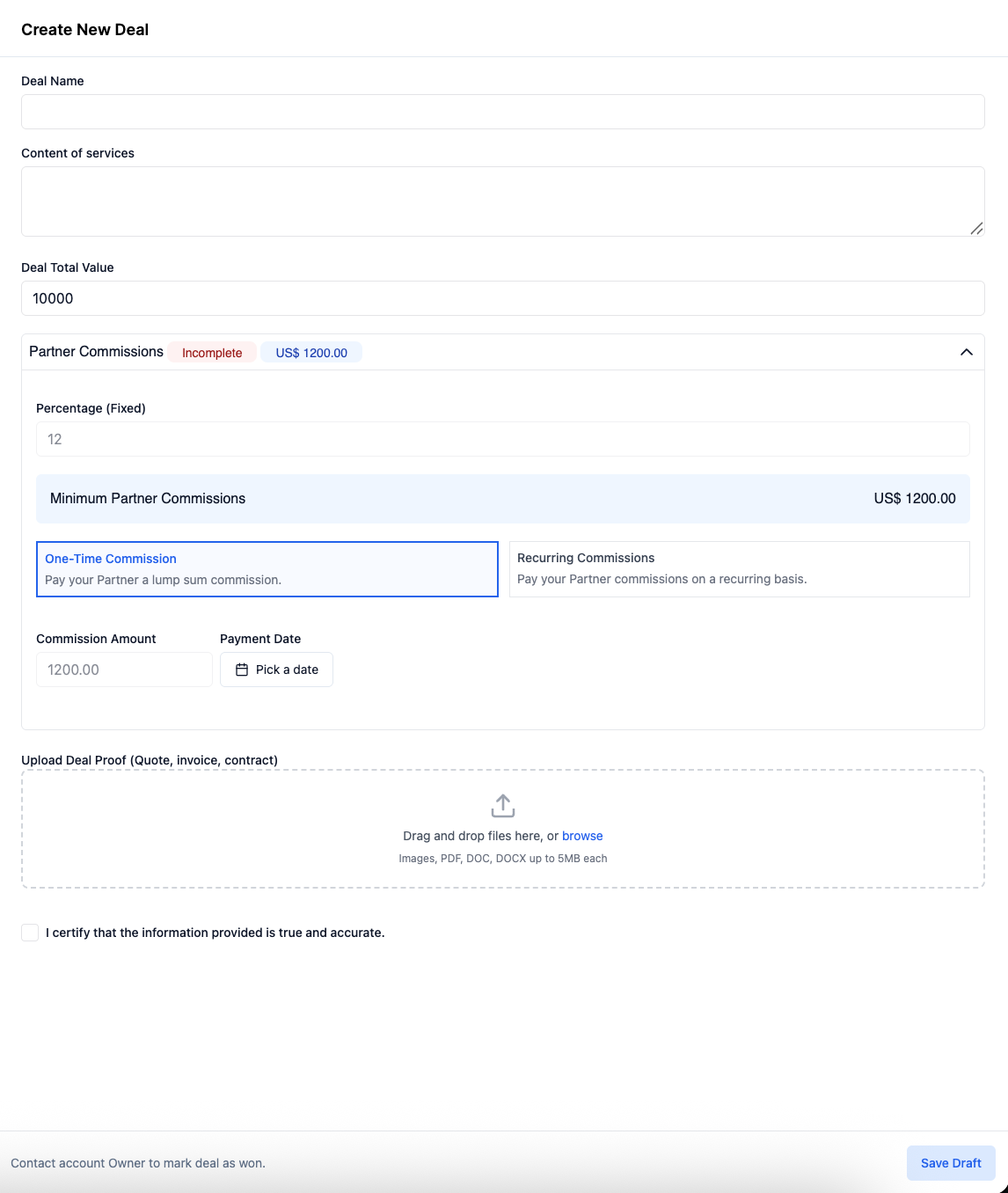
If the deal is still under negotiation, click Save Draft. If the deal has been won, click Mark as Won.
Managing a Deal
The Deals Management page displays a list of deals and meetings you created. From here you can see the deal name, total value of the deal, status, and program that the deal is associated with.
If the deal is still under negotiation, the deal status will be shown as Negotiating unless you already marked it as won upon creating the deal.
Viewing Deal Details
To view the details of your deal:
Navigate to the Deals Management page
Click View next to your desired deal
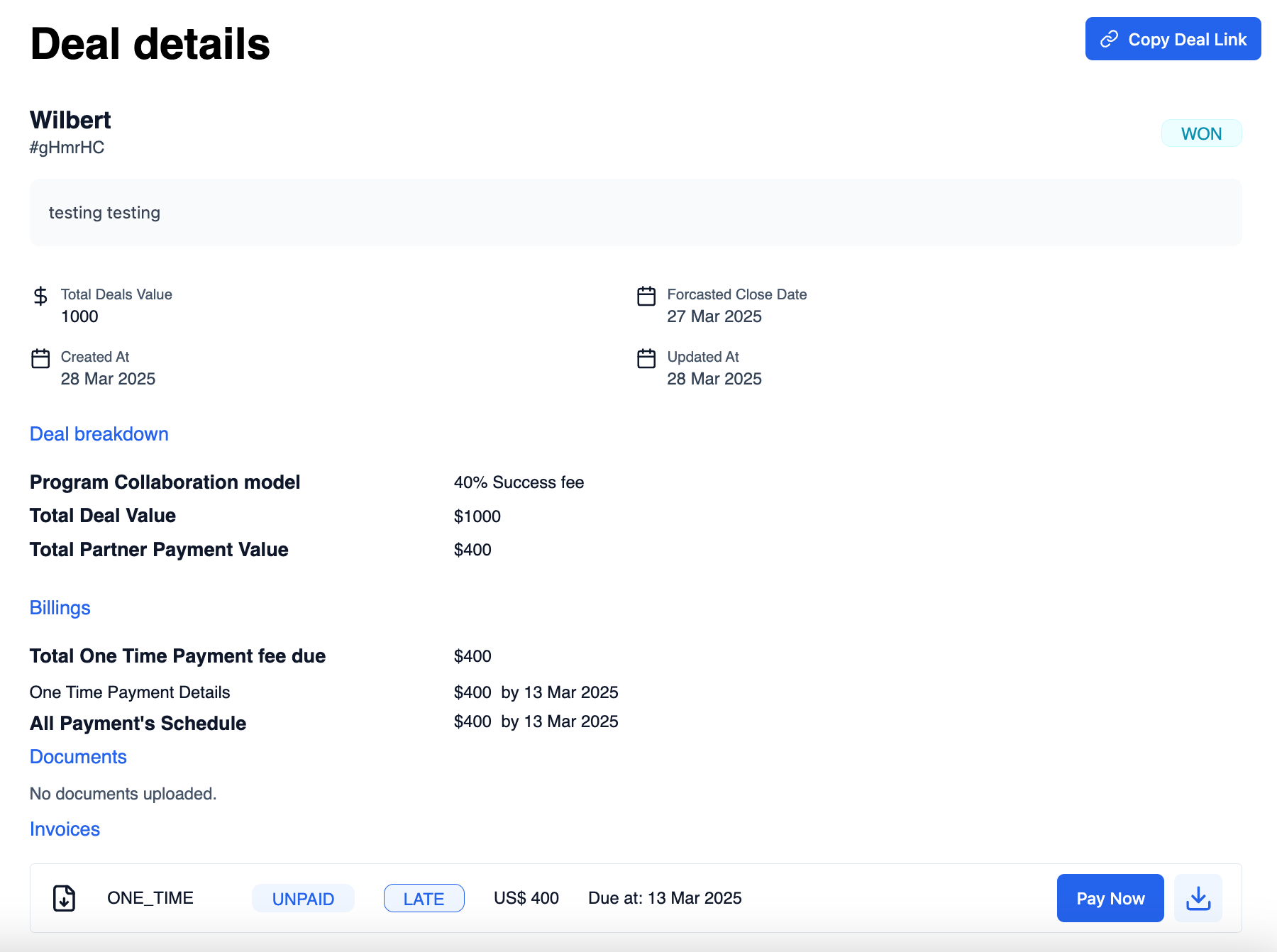
You will then be able to see the following details of your deal:
Total deal value: The revenue associated with the deal
Close date
Deal breakdown: Showing the calculations of the partner commission to be paid
Billings and payment schedule: Showing breakdown of how and when the partner commission invoices are to be billed
Documents: Where you can find the contract/signed document
Invoice: Upon marked as won, you will be able to see the details of the partner commission invoice and make a payment to your partner
Closing a Deal
There are two ways to close a deal: Mark as Lost or Mark as Won. All you need to do is assess the outcome of your sales efforts and update the status accordingly to reflect whether the deal was successfully secured or not:
If you successfully secured the deal, click Mark as Won. Congratulations on winning the deal!
If you did not secure the deal, click Mark as Lost.
To close a deal, take the following steps:
Navigate to the Deals Management page
Click View next to your desired deal
On the top right corner, select either Mark as Lost or Mark as Won.
Won a deal? Remember to reward your partner for their contribution to close the deal with you.
Read: Introduction to Payouts
Still need help? Share an idea