Recruiting Your Partners
Written By Wilbert Averil
Once your partner program is set up, you can begin recruiting partners. Choosing the right partners is crucial for a thriving partner program.
There are two ways you can recruit partners on Expando AI™: Marketplace and Program Page.
Good to know: Already have existing partners? See Inviting and Removing Partners to learn how to add your existing partners to your Expando AI™-hosted partner program.
Through the Marketplace
The Marketplace is a centralized hub where partners discover and connect with your company.
When you create a partner program, your program is set to be listed on the Marketplace by default. However, there will be cases where you want to keep your partner program private.
To get your partner program delisted on the Marketplace:
Under Create Program or Edit Program, scroll to Advanced Options
Tick Make My Program Private
Click Create or Update to save your changes
Through the Program Page
Once you create a partner program, our AI will generate a program page associated with your program.
A Program Page is a landing program hosted by Expando AI™, which provides a look at how your program works and what incentives partners can expect to earn when they actively contribute to your program.
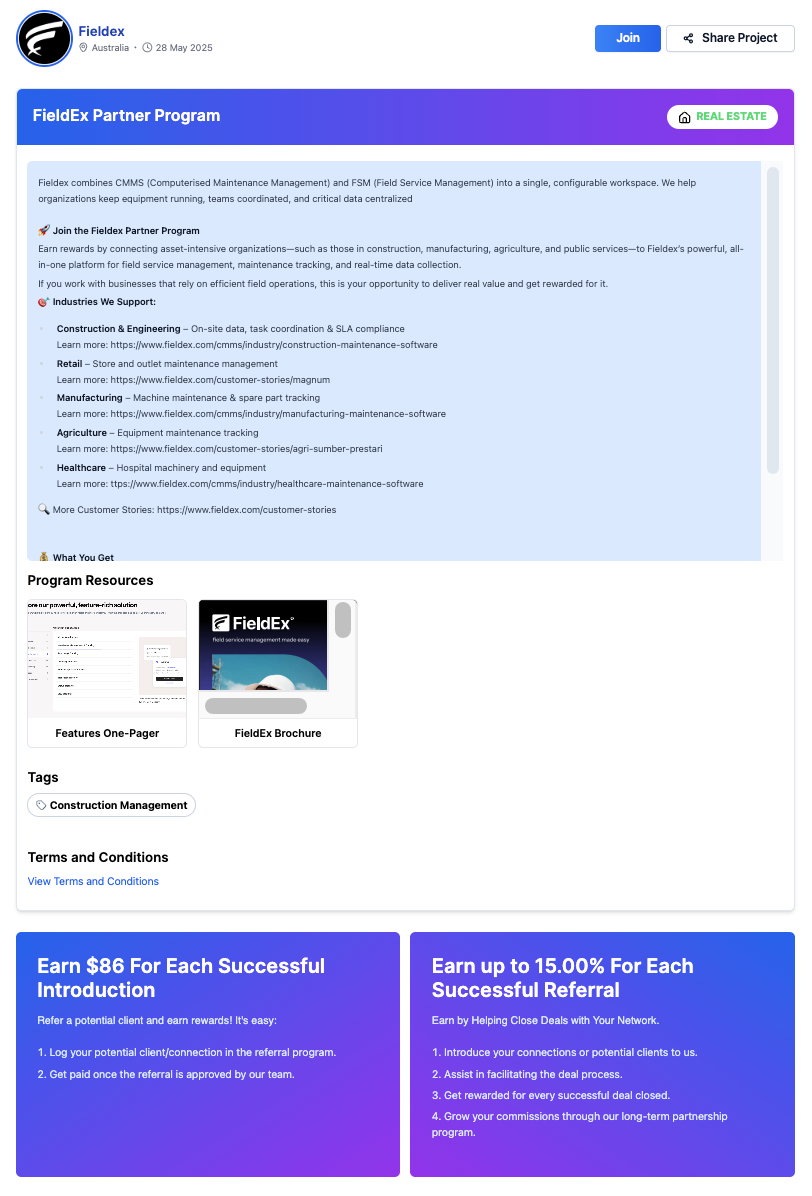
The program page contains the following items:
Logo
Website link
Program name and description
Commissions (set up through Create Program)
FAQ
Make Referral (if Partner application form is disabled) or Join Program (if Partner application form is enabled) function
Share link
This is also the page that partners will see in the Marketplace. Note that you cannot customize the branding of the program page in the meantime.
Integrate Your Program Page into Your Website
Embedding your program page on your website can significantly enhance user engagement and accessibility.
To embed your program page, you will need to:
Copy your program page share link
Create an iFrame code using the following format:
<iframe src="program_link_url" width="100%" height="600px" frameborder="0" allowfullscreen></iframe>
Below are detailed instructions for embedding your program page on popular web platforms such as WordPress, Webflow, and Framer
WordPress
Log in to your WordPress Dashboard
Navigate to the page or post where you want to embed the iFrame
Switch to the HTML/Text editor mode (not the Visual editor)
Paste the iFrame code where you want it to appear:
<iframe src="program_link_url" width="100%" height="600px" frameborder="0" allowfullscreen></iframe>Update or publish the page
Webflow
Open your Webflow project and go to the page where you want to embed the iFrame
Add an Embed element to your page by dragging it from the Add Panel
Paste the iFrame code into the Embed element's settings:
<iframe src="program_link_url" width="100%" height="600px" frameborder="0" allowfullscreen></iframe>Adjust the size of the Embed element as needed
Save and publish your project
Framer
Open your Framer project and navigate to the canvas where you want to embed the iFrame
Add an HTML Embed component to your canvas
Paste the iFrame code into the HTML Embed component:
<iframe src="program_link_url" width="100%" height="600px" frameborder="0" allowfullscreen></iframe>Resize the component to fit your design
Preview and publish your project
Still need help? Share an idea