Creating and Publishing Your Partner Program
Written By Wilbert Averil
The Partner Program is one of the central components of Expando AI™. All partner operations, from referral tracking to automated commission payouts, are centralized in the partner program.
Depending on whether you want to recruit partners or simply manage your existing program actively, your partner program will be public to potential partners or private for only your team and invited partners to see.
How to Create Your First Partner Program
When you access your Expando AI™ account, you will see the Create Program button on the top navigation bar.
Upon clicking the button, you will see that there are two ways you can create a partner program: Standard and AI-assisted.
Standard
First, select “Create a Program” in the left navigation menu.
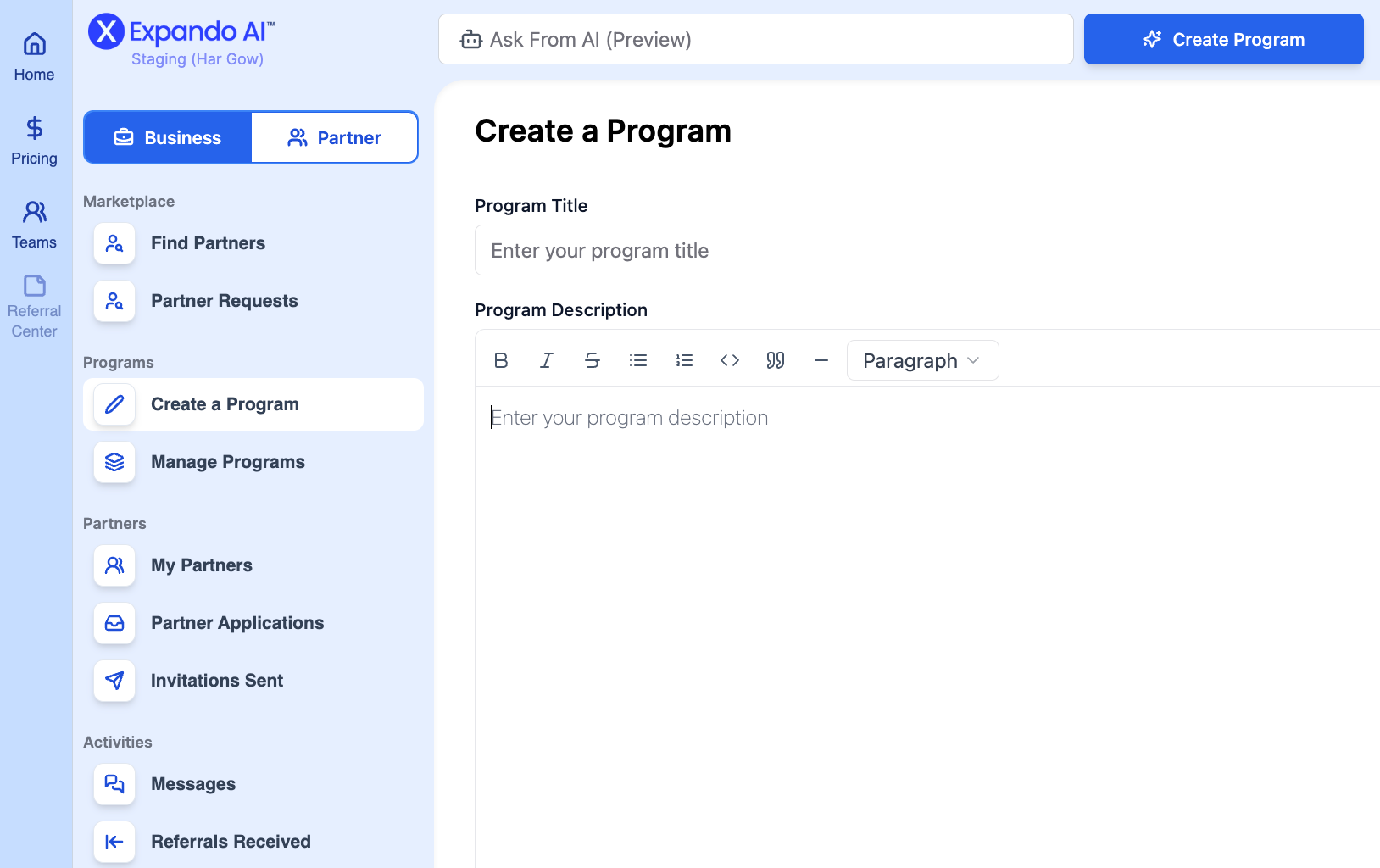
Then, enter the following information:
Program name
Program description
Target market and industry
Commission structure
Supporting materials/attachments
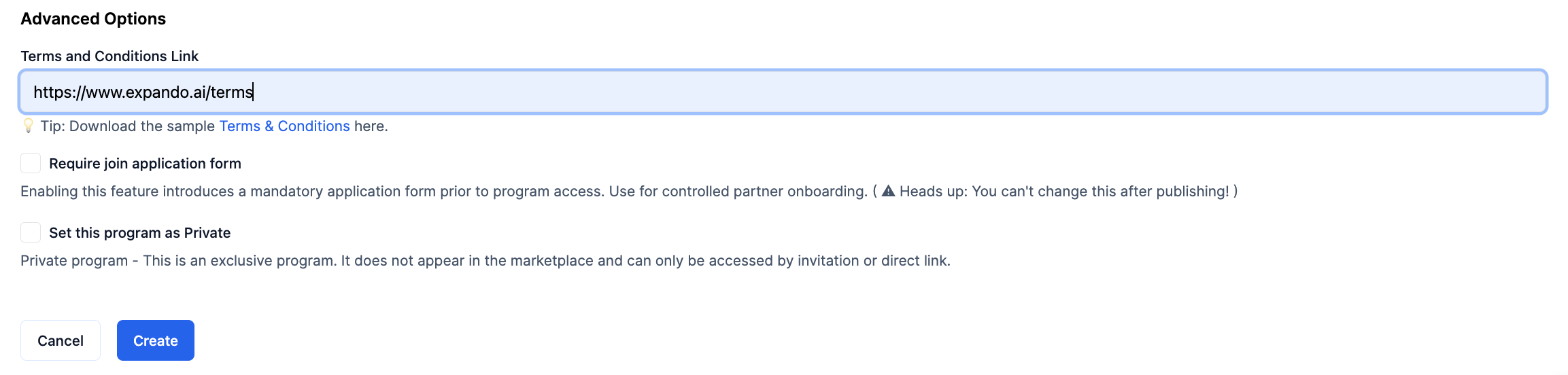
Link to terms and conditions
[Optional] Partner application form
[Optional] Make the program private*
*If private, your program won't be featured in the Marketplace
AI-Assisted
To generate a partner program using AI, simply click on “Create a Program” on the top navigation menu.
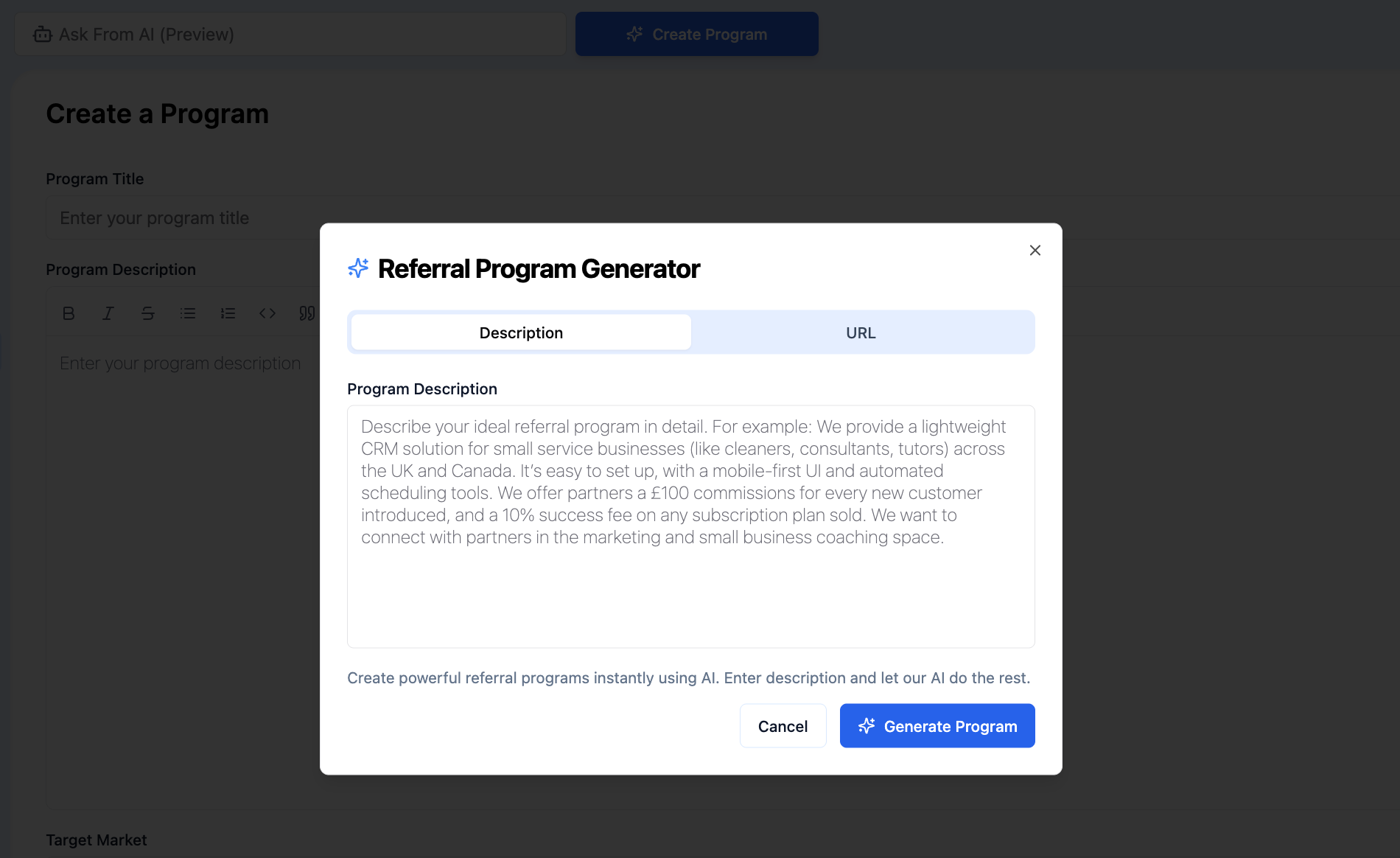
You simply need to describe your program or append your website link. We recommend using the following prompt:
"Create a partner program for my company using the following information:
Type of Partner Program: [Specify the type, e.g., Affiliate, Referral, Reseller]
Ideal Partners Profile: [Specify the type of partner profiles you want to invite e.g., agencies, etc.]
Target Market and Industry: [Identify the specific market segments and industries that the program aims to attract. Include any geographic focus if applicable.]
Commission Structure: [Outline the commission structure and rate]
Terms and Conditions: [Add link here]"
Then, make adjustments to your program to ensure accurate information.
Build Your Partner Commission Structure
Your program settings determine what commission structure and how much commission you pay your partners. Our platform sets a base partner commission of US$100.
Note: Once your partner program is published, you cannot update the commission structure. If you need to change it, you will have to delete the program and create a new one with the desired structure.
What Are Success and Introduction Fees?
In Version 1.0, Expando AI™ supports two commission types:
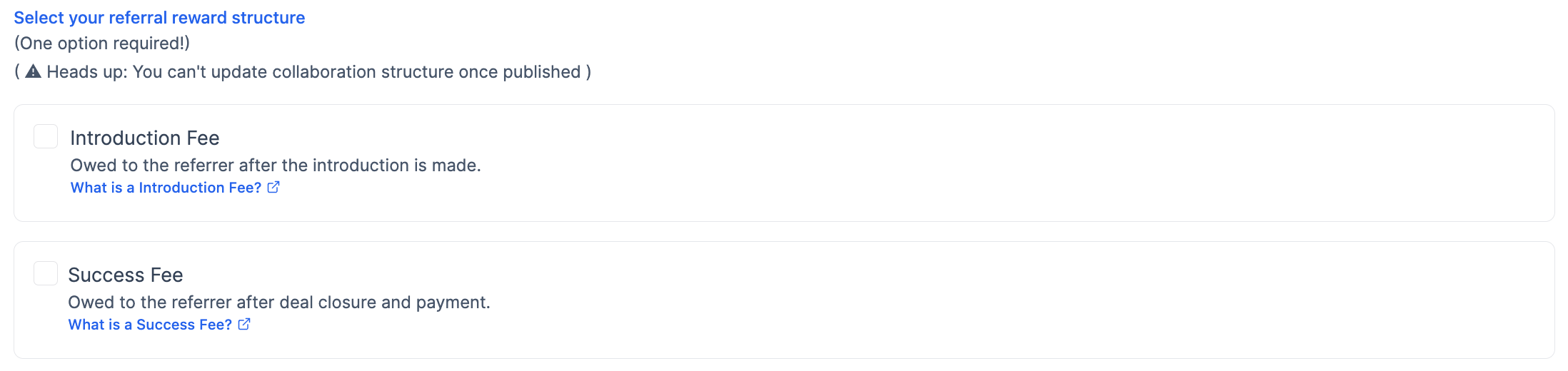
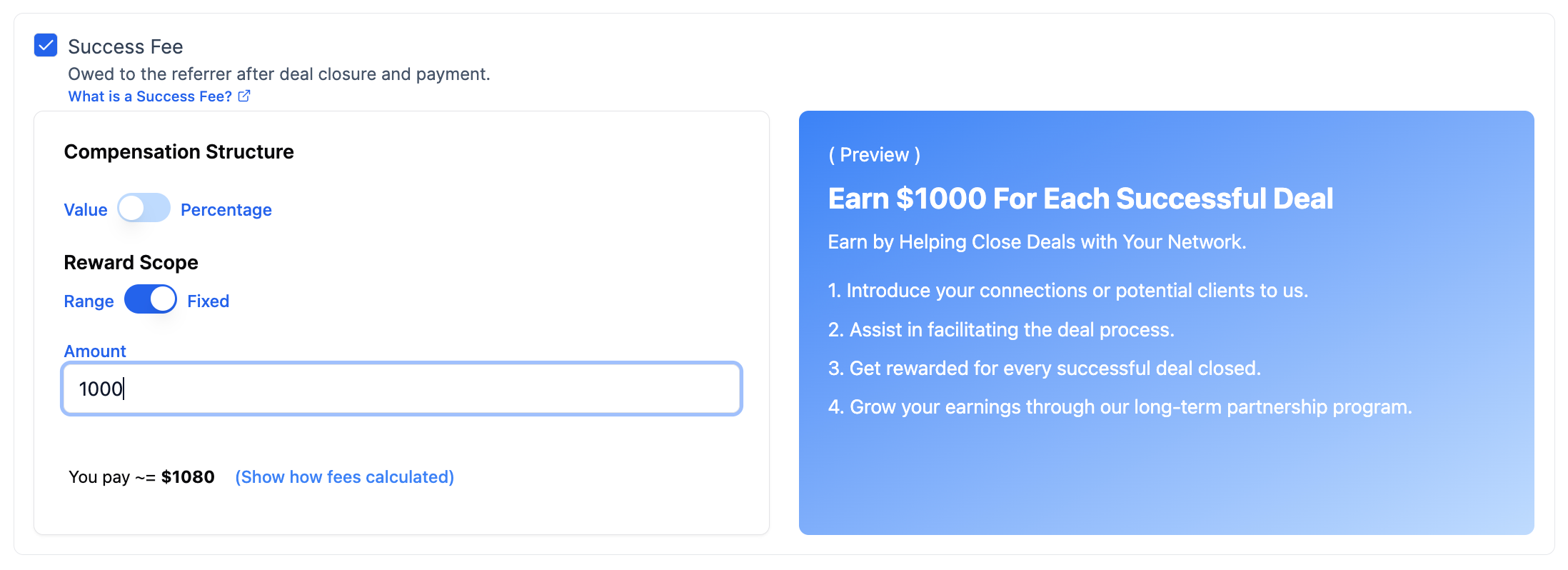
Success Fee
Success fees are given to partners after a customer completes a purchase of your product. You can set the commission structure as Fixed or Percentage-Based.
Introduction Fee
Introduction fees are one-time, fixed-amount commissions that you give to partners for every referral that you accept.
Note: Once you accept a referral, you will be automatically charged an invoice to pay out the introduction fee.
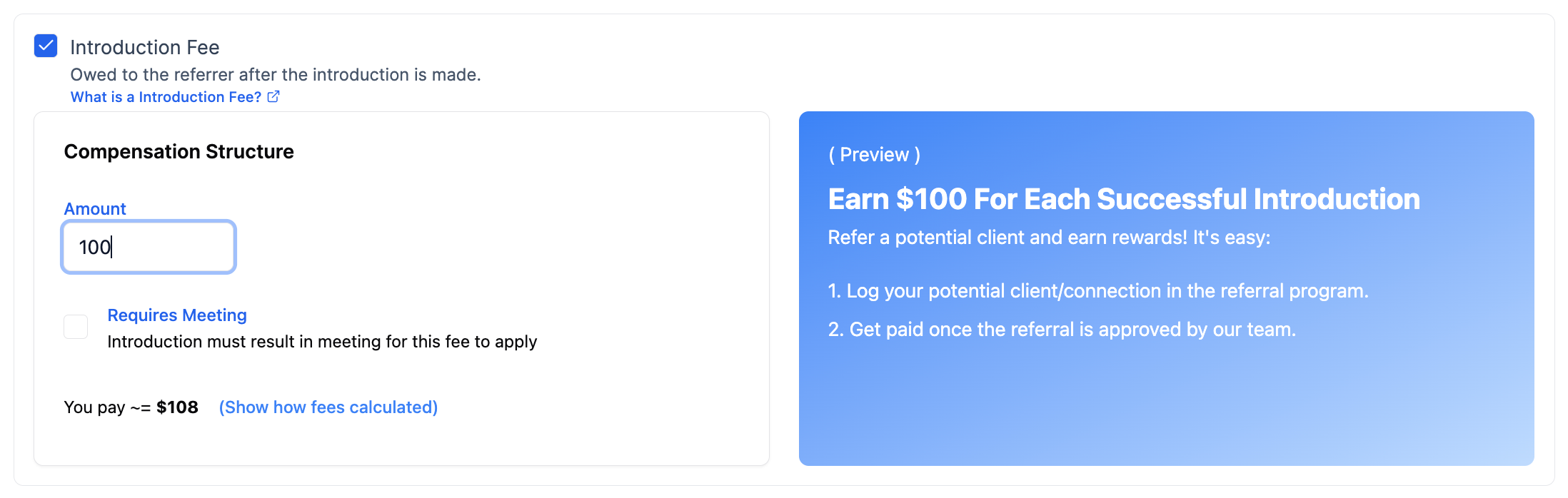
To get a detailed commission structure recommendation for your partner program, check out our article on Partner Commissions [Coming Soon] or our Commission Calculator.
Note: Expando AI™ takes a percentage of your partner commission invoices, known as a Platform Fee, which already covers the transaction fees on Stripe Connect. This fee helps us scale our support for your program as it expands and aligns our interests in attracting new partners and driving partner-sourced revenue through the platform.
How to Add Terms and Conditions
Creating a terms and conditions agreement is essential for outlining the rights, responsibilities, and expectations between you and your partners.
While your legal obligations may vary based on your industry and geographic location, here are some key elements to consider, including:
Eligibility criteria: Clearly define who is eligible to join your partner program.
Commission policies: Specify your flexibility in adjusting commission structures and the conditions under which changes may occur.
Payment details: Outline the frequency of commission payments and any minimum thresholds that must be met for payouts.
Brand usage guidelines: Provide clear instructions on how partners can use your brand assets.
Prohibited activities: Detail actions that could lead to expulsion from the program, such as fraudulent activities.
Note: While you can find templates online by searching for "partner program terms of service," it is highly recommended to have a lawyer review your document or draft it entirely. This ensures that your terms and conditions agreement is comprehensive and legally sound, protecting both your business and your partners.
Before adding your terms and conditions on Expando AI™, you will need to create a shareable document outlining the terms and conditions of your partner program, which we recommend that you store in Google Drive.
Then, you can take the following steps to add your terms and conditions:
Generate a link to the terms and conditions agreement
On the Create Program page, scroll to Advanced options
Enter the link to your terms and conditions file
Note: The terms and conditions field is mandatory to ensure partners joining the program through Expando AI™ are
Adding Supporting Materials
Supporting materials are sales materials to help partners promote your product effectively. These resources not only support promotional efforts but also educate partners about your product, ensuring they can represent you the right way.
Under Create a program, Expando AI™ allows you to upload these sales materials.
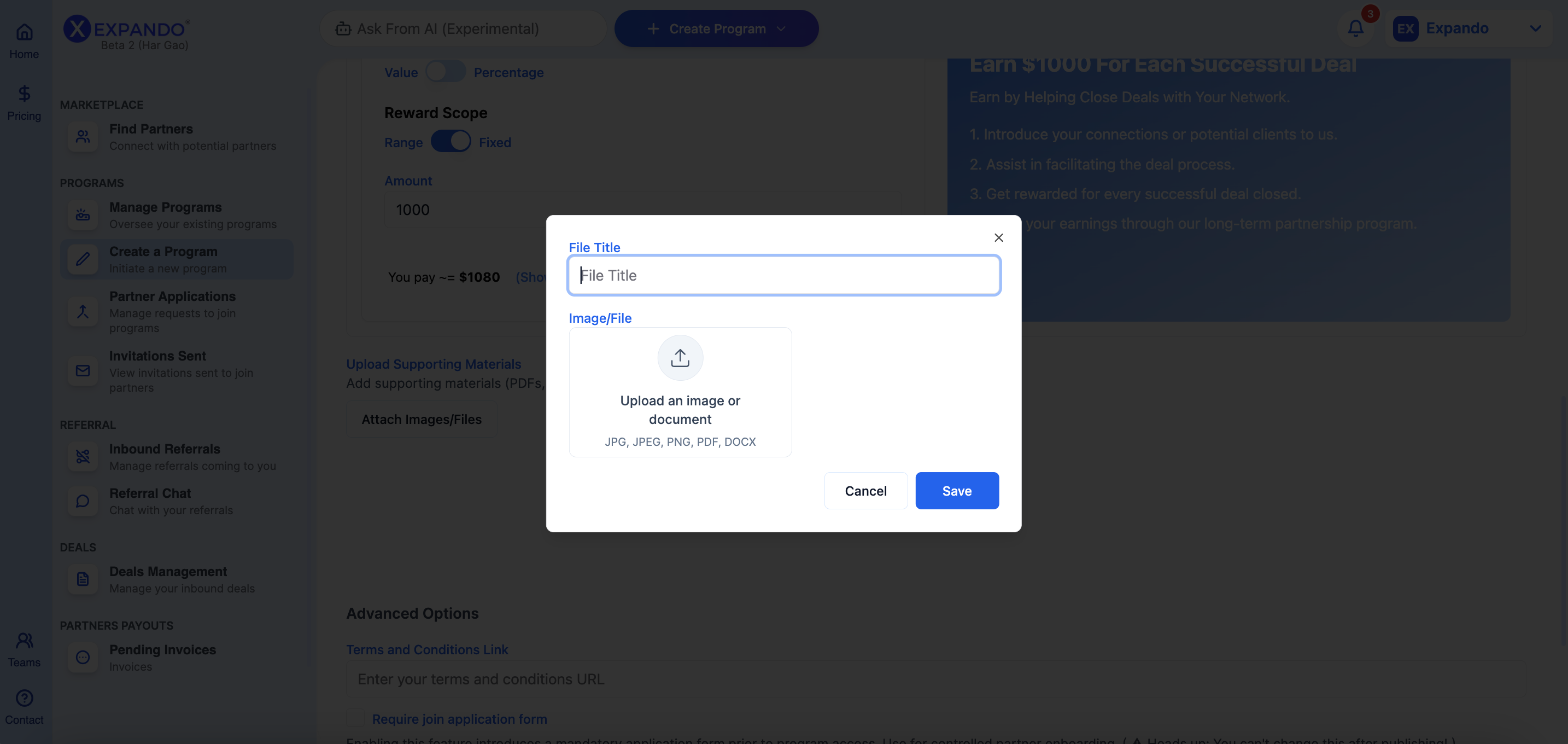
Supporting Material Examples
Sales materials
Company logos
Templates
Program guide
Product information and FAQs
Case studies
Accepted File Types
.png,
.pdf,
.jpeg,
Common video, audio, and compressed file types
Resource File Size
The maximum resource file size is 250MB for video and 30MB for all other file types.
How to Upload, Edit, and Delete Supporting Materials
To upload a resource:
On the Create Program page, scroll to Resources
Click Attach images/files
Name and add your file
Using Application Forms
With Application Forms, you can screen potential partners who want to join your program by evaluating their responses to a set of questions, helping you decide whether to accept or reject their applications.
This approach allows you to better control who can join your program and gather essential information about your partners before engaging with them.
To enable partner applications:
On the Create Program page, scroll to Advanced options
Tick Require Application Form
List your questions
Publishing Your Partner Program
Once you have filled out all the information on your partner program, click the Create button at the bottom. Our AI will also generate a program page for you, where you'll be able to see your program details.
Then, head to Manage Programs, where you will find your newly created program. Note that its status is still set as Draft.

To set your partner program as Published:
Click the rocket button under Actions.
You will be redirected to the program page. Then, click on the Publish button.

Then, you will be redirected to the Edit Program page, where you will need to scroll down and click on Publish. Once the pop-up shows, click Confirm.
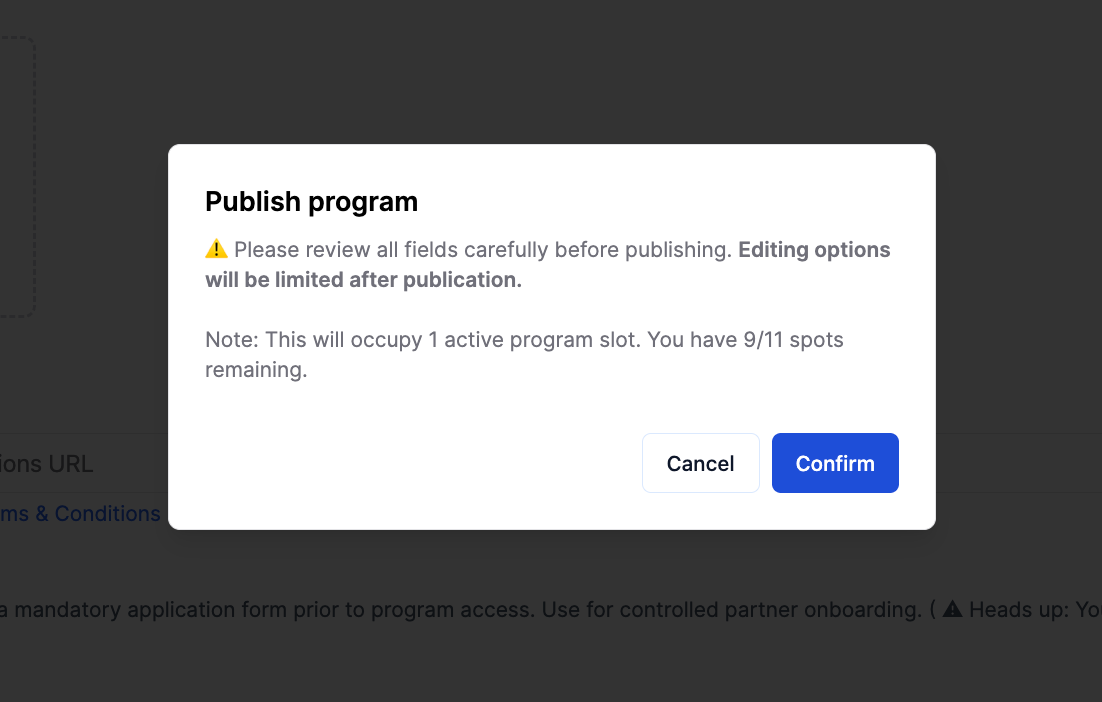
Note: Pay attention to the partner program quota shown on the Publish button (shown as “Publish (5/5)” in the picture above), which tells you how many programs you can publish with your account. If you have reached your limit but want to publish another program, you must upgrade your account or purchase an additional program slot.
Congratulations! Your partner program is live and published on the Marketplace, where potential partners will view and join your program.
Still need help? Share an idea